Built for mobile shopping screenshots
Save or capture the item from a shopping app, marketplace, product page, or social ad. TryThemOn.Me can use that image as the clothing reference when the garment is clear enough.
When a clothing item lives inside a shopping app, mobile browser, or marketplace listing, a screenshot is often the fastest way to try it. Upload the screenshot with your own photo and generate a visual preview.
Save or capture the item from a shopping app, marketplace, product page, or social ad. TryThemOn.Me can use that image as the clothing reference when the garment is clear enough.
Choose screenshots where the clothing is large, sharp, well lit, and not hidden by buttons, stickers, text, or other products. Crop around the garment when the app UI takes too much space.
The preview helps you judge style, color, silhouette, and proportions on your own photo. It does not calculate exact size, stretch, fabric weight, or comfort.
A real TryThemOn.Me example showing how a saved clothing image or screenshot-style reference can lead to a visual try-on preview.

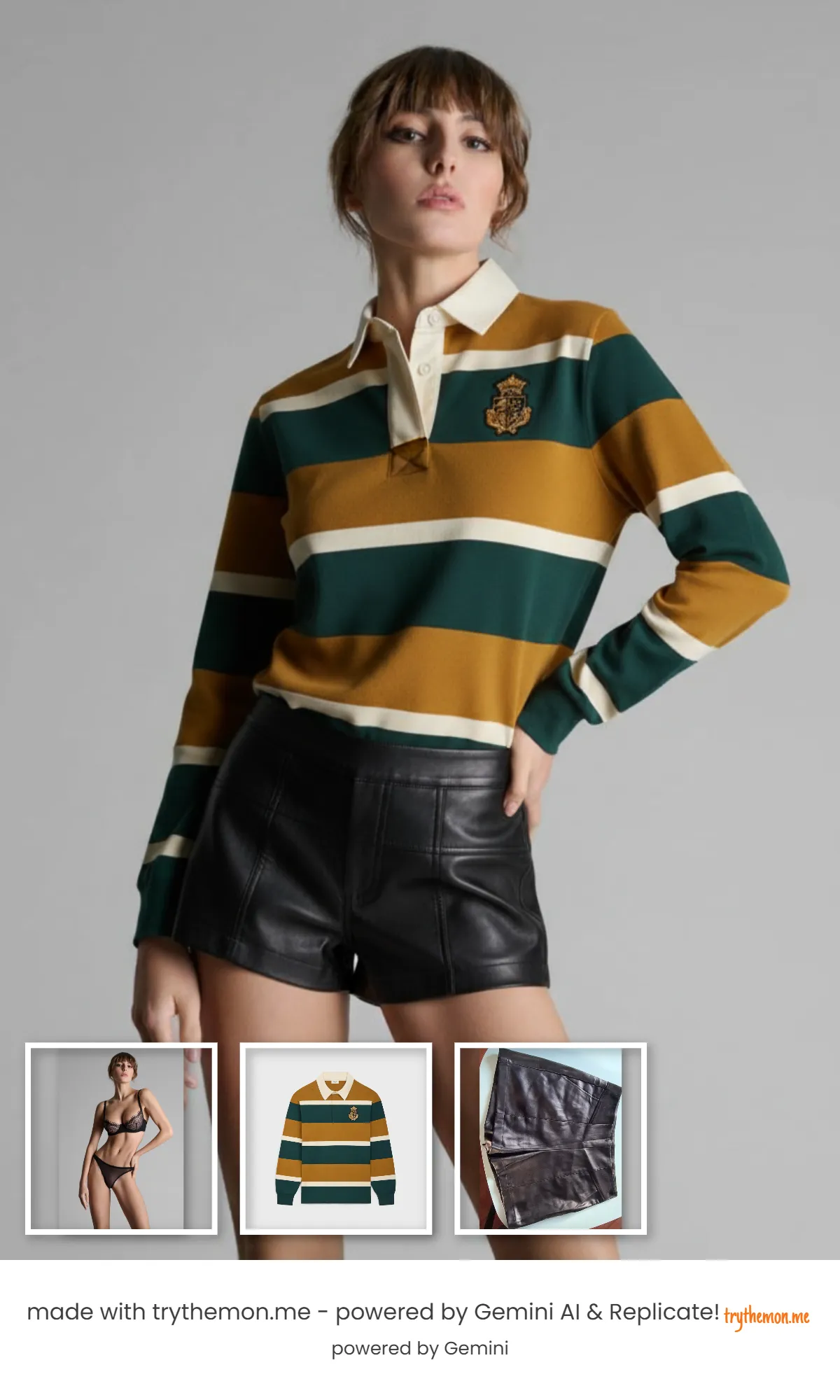
Clear screenshots and product photos work best. The result remains a visual preview, not a sizing calculation.
Try on clothes from a screenshotUse a front-facing photo with good lighting for best accuracy.
Upload the product image you want to test from any online store.
See a realistic visualization and compare styles before checkout.
Launch the app and generate your preview in seconds.
Try on clothes from a screenshot Upload a shopping screenshotThese references provide broader context on virtual try-on and online shopping decisions.
Yes. A clear screenshot can be uploaded as the garment reference for a visual preview.
Yes. Crop or choose screenshots where the item is easy to identify.
No. You can upload the image directly.
Avoid blurry screenshots, heavy text over the garment, and images where the item is partly hidden.